Bought SimNet? Here’s What to Expect!
Step 1: Watch for Your Access Code Email
After you buy SimNet, you’ll receive a separate email with your access code, as well as a receipt, which also contains your access code.
The code is 18 digits long and looks like this SimNet Access Code: KUPG123ABC567D8E9L
If you can’t find your code we have two other ways of getting it. CLICK HERE for more information.
Step 2: Save Your Code!
Once you get your code, hang on to it! Don’t use it yet. Wait until your class starts — your teacher/instructor will tell you exactly how and when to use it.
Having Trouble with SimNet?
If something isn’t working when you try to activate or use SimNet, reach out to SimNet’s student support team here: 👉 https://mh.my.site.com/CXG/s/ContactUs
The page gives you a few different ways to get help. The chat feature is the best place to start — it’s quick and easy!
Buying an eBook? Here’s how to get it:
Step 1: Find your code
After you buy an eBook, you will get an email called “Thank you for your order” or “Thanks for shopping with us”.
Inside, you will see your Redemption Code.
It looks like this: XXXX-XXXX-XXXX
Step 2: Enter your code
Go to the redemption form at the bottom of this page (Click here) and type your code exactly as you see it (include the dashes).
Step 3: Check your email again
You will get another email from the eBook company.
This email tells you how to open and read your eBook.
Follow the steps carefully.
The eBook company’s email contains support information (i.e. a link, URL, or phone number) at the bottom of their email. Please contact the eBook company if you need help accessing your eBook.
Can’t find your code?
Method 1
- Log in to your Campus Bookstore account:
https://anderson.campusbookstore.ca/my-account/ - Click My Account in the top right corner.
- Select the Orders tab.
- Click View Orders. Your code will be in the invoice.
Don’t know your account information? Got to “Your Campus Bookstore Account“ below.
Method 2
Ask Michelle, our AI assistant.
Click the blue chat icon to start chatting.
Your Campus Bookstore Account
When you buy something from the Campus Bookstore website, an account is created for you automatically. At first, your account does not have a password.
Check your email for a message that asks you to set your password. Click the link in that email and create your password.
If you don’t see the email, don’t worry. You can still get into your account:
- Go to the login page: https://anderson.campusbookstore.ca/my-account/
- Click “Lost Password”
- Enter your email address
You will get a new email with a link to create your password.
Once your password is set, you can log in to your account. After you log in, you can see your invoices. Your invoices will have your redemption and access codes.
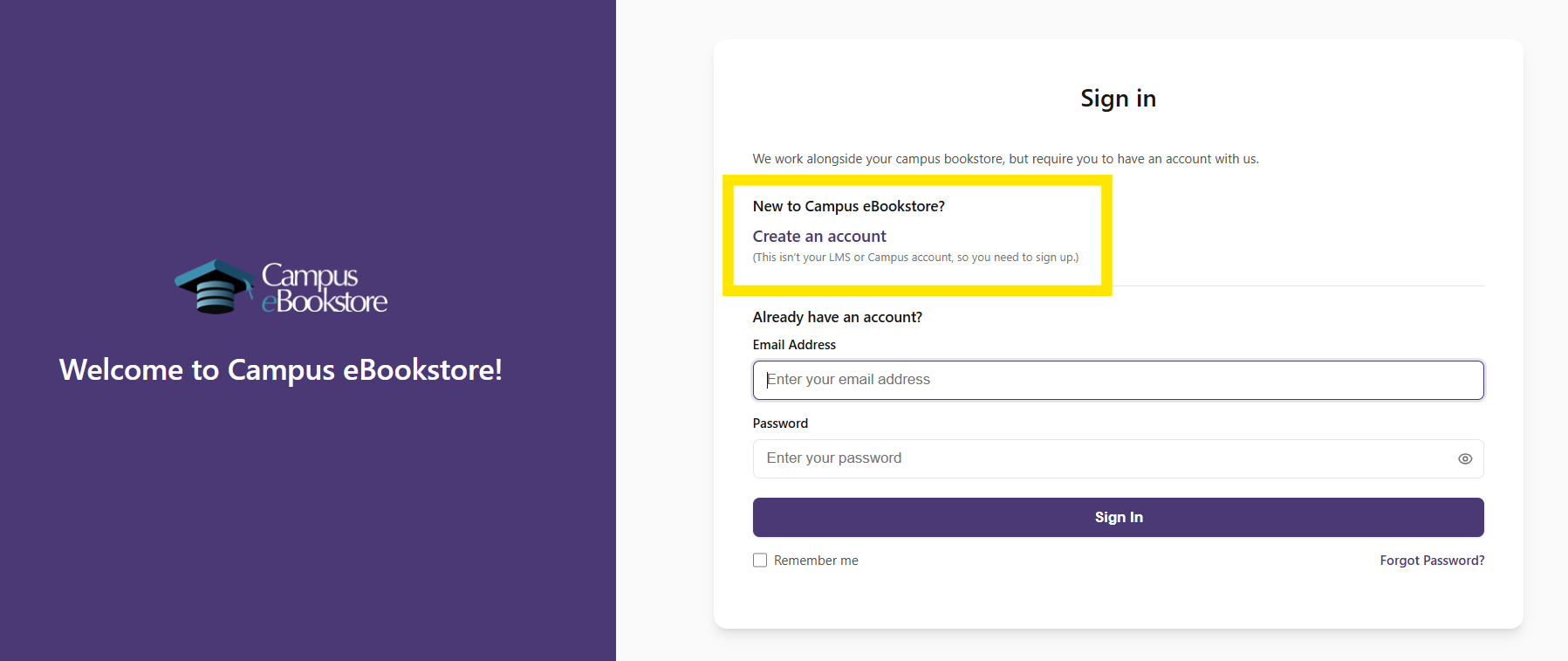
Campusbookstore.ca IS NOT Campusebookstore.com
When you enter your code above, your eBook might open on another website called CampusEBookstore.com if it is powered by BibliU.
This website is not part of our bookstore.
- Your login from our bookstore will not work there.
- If you have never used that site before, you will need to create a new account.
(See the image below for help.)
eBook Redemption Code Form – Redeem your eBook code here!
Need help accessing your eBook?
After you redeem your code, you will get another email from the eBook company.
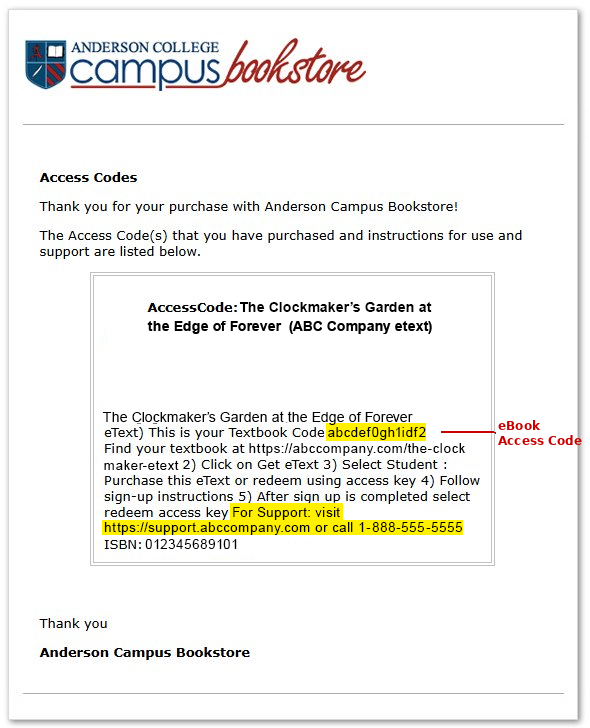
This email shows you how to open and read your eBook. It will look similar to the example image (see eBook Company Email image). It also includes your access code, but it may be a little hard to find in the email.
At the bottom of the email, you will find support information. This may include an email address, phone number, or website link.
If you have trouble using your code on the eBook company’s website, you need to contact the eBook company for help. We cannot access their system or fix issues with your eBook.
eBook Company Email
(not a real email – for demonstration only)